
Proper Office Set-up
Some useful pointers in improving the layout of your workspace:
 Arrange
your desk layout to make best use of available space.
Arrange
your desk layout to make best use of available space.
Document holders
are useful in some cases. If you need to look at the keyboard when
typing,
the best place for the document holder is between the monitor and the
keyboard.
Remember that the
computer is not the only tool in constant use and others, such as
the telephone, should also be readily accessible without stretching or
twisting. Use the mouse as
close to the keyboard as possible.
Make sure there
is a comfortable viewing distance between your eyes and the screen and
have some space between the keyboard and the front of the desk. Place
the screen in front of
you so that you face it without twisting your body.
 Ensure your legs
are not obstructed by any drawers under the desk. If your PC is occupying
Ensure your legs
are not obstructed by any drawers under the desk. If your PC is occupying
too much desk space, move it off the desk.
Clear the space
under the desk so that you can place your legs underneath it without
twisting or leaning forward.
Sitting with the
chair too low and too far from the desk encourages a slouched posture
with
no support from the chair back. The head is tilted forward. Feet are hooked
around the chair base
restricting blood circulation in the legs. Shoulders may be hunched.
Move the chair
close to the desk and sit back on the seat. Adjust the chair back so that
the
upper body is supported. Raise the chair seat so that, with the upper
arms vertical, the elbows
are level with, or just above, the desk.
Shorter people
often set the chair height so that their feet are firmly on the floor.
If this
is too low for the desk, it is likely that the forearms will be stretched
forwards (or sideways) to
avoid hunching. This causes undue loading on the shoulders.
Set the chair position
and height as described above. Use a foot rest if your feet do not
touch the ground. Height-adjustable chair arms provide additional support
for the arms and
upper body.
If the monitor
is set too low, this encourages the operator to tilt the head downwards.
As a result, the whole body tends to lean forward, moving away from the
support of the chair
back and encouraging slouching.
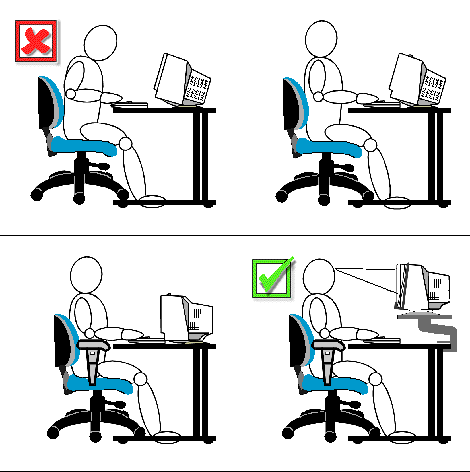
Touch typists can
raise the monitor up so that the top of the visible screen is at eye level.
"Hunt and Peck" typists who need to look at the keyboard will
want to position the monitor
lower to minimise "nodding" between the two.
You will not be able to benefit
from these |
SUMMARY: Workspace arrangement
- Adjustability to fit each employee’s size
- Employee to maintain neutral posture and avoid awkward or extended reaches
and jerky movements while performing the tasks.
- A variety of working positions to avoid static postures
- Full range of motion and adequate leg room.
- Adequate space for and access to all necessary tools and equipment
- Frequently used work items within easy arm’s reach.
- Unobscured line of sight.
Seating:
A basic rule of ergonomics is that there is no such thing as an "average"
person. However,
providing a chair specifically designed for each individual is not practical.
The only solution
is to provide workers with fully adjustable chairs that can accommodate
a maximum range
of people (typically around 90 percent of the population; workers falling
in the ranges of
5% of the shortest and the tallest may need specialised equipment).
Your chair should have the following features:
- controls that are easy to operate from sitting position;
- adjustment for height and tilt;
- a seat that does not put pressure on the back of thighs or knees;
- a front edge that curves towards the floor;
- breathable, non-slippery fabric on the seat;
- a backrest shaped to support the lower back;
- a stable five-point base;
- wheels or casters suitable for the type of flooring; and
- a swivel mechanism.
Chair Height Adjustment
The following simple steps will allow you to self adjust your chair to suit your individual body dimensions.1. Stand in front of the chair. Adjust the height so the highest point of the seat,
(when in the horizontal position), is just below the knee cap.
2. Sit on the chair and keep your feet flat on the floor.
3. Check that the clearance between the front edge of the seat and the
lower part of the legs
(your calves) fits a clenched fist (about 2 inches). Armrests should
not interfere with free movements
within the workstation
4. Adjust the backrest forwards and backwards as well as up and down
so that it fits the hollow in
your lower back.
5. Sit upright with your arms hanging loosely by your sides. Bend your
elbows at about a right angle
(90 degrees) and adjust the armrest height until they barely touch the
undersides of the elbows
6. Remove the armrests from the chair if this level cannot be achieved
or if armrests, in their lowest
adjustment, elevate your elbows even slightly.
7. Tilt the seat itself forwards or level if you prefer.
You will need to have a colleague, or workstation assessor, verify that
the chair adjustment as
described above allows you to be in proper alignment with your desk, keyboard
and computer
monitor. Smaller individuals may need to elevate their chair (and
use a foot rest) to align with
the monitor and keyboard. Taller individuals may need to elevate
their monitor.
| Different office tasks require different equipment, accessories and layouts. The chair and its adjustment remain constant for the majority of setups in a typical office environment. |
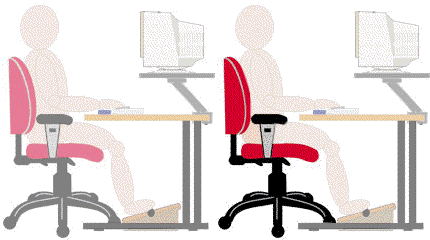
Armrests Armrests are traditionally not recommended because they can prevent the users from getting close to the desk. However, now there are armrests that extend 25 cm (10 inches), or less, from the back of seat. People using chairs fitted with these shorter armrests can move their chairs closer to their workstations. The armrests gives them a place to rest their arms which, in turn, takes some of the load off their shoulders and neck. |